Navigating & Internal Search
Every project is a tree of pages, sections, datasets, media and templates. This guide shows the four ways to move around it in ContentCreator — clicking through the live preview, walking the Navigation tree, jumping back via Visited Lately, and — fastest of all — the internal search that finds any element by name or content and takes you straight to it.
Overview
A FirstSpirit project can hold thousands of elements. ContentCreator gives you several complementary ways to reach the one you need, so you rarely have to remember exactly where something lives.
| Way to navigate | Best when… |
|---|---|
| In-context preview | You can see the element on a page — click it directly to edit. |
| Navigation panel (site tree) | You know roughly where a page sits in the menu structure. |
| Visited lately | You want to jump back to something you just had open. |
| Internal search | You know a word from the name or content but not the location — the fastest route. |
| Reports & data sources | You are looking for a dataset or a media asset rather than a page. |
Note: For a tour of the whole editor — edit mode, inline editing, sections and workflows — see ContentCreator: An Introduction for Editors.
The Preview & Workbar
When you open a project, ContentCreator shows the current page in a live, in-context preview. Two toolbars frame it and are always available while you navigate:
- Top toolbar — the burger menu (top-left) that opens the Navigation panel, create (
+), undo/redo, bookmark, the apps grid, developer tools (code / DOM), the content-language selector (EN), and the global Search… box on the far right. - Workbar (the icon rail down the right edge) — opens the report and tool panels: search results, bookmarks, tasks, edit history / Visited lately, and the data-source and media reports.
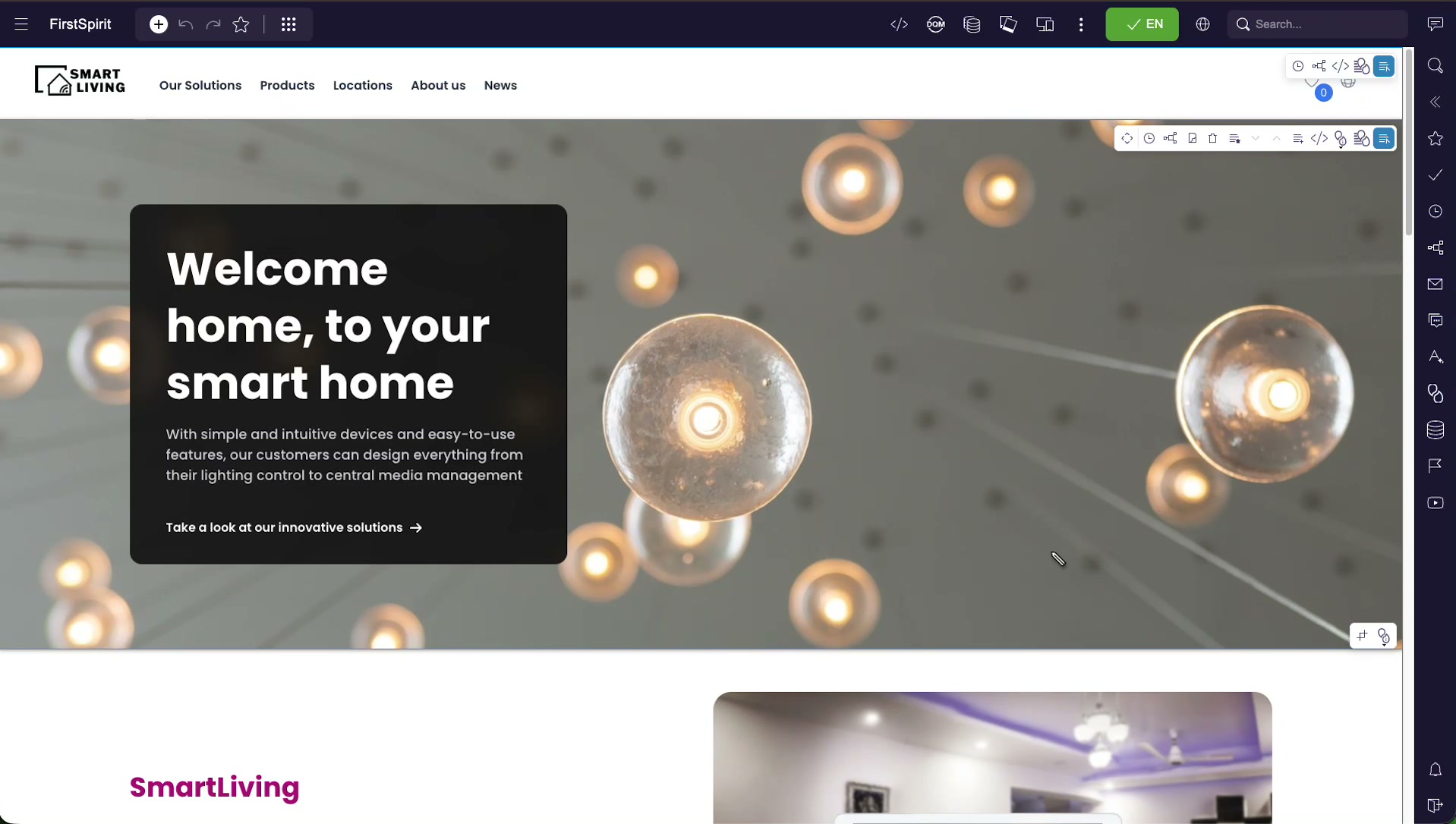
The simplest way to move around is to browse the site the way a visitor would: follow the links and menus inside the preview. Every internal link is clickable, so you can walk from the homepage into any linked page and start editing where you land.
The Navigation Panel
Opening the burger menu (top-left) reveals the project’s structure on the left. It has two tabs:
- Navigation — the site tree (the Menu Structure): the pages and folders exactly as they are arranged in the menu.
- Page — the sections that make up the page you are currently viewing.
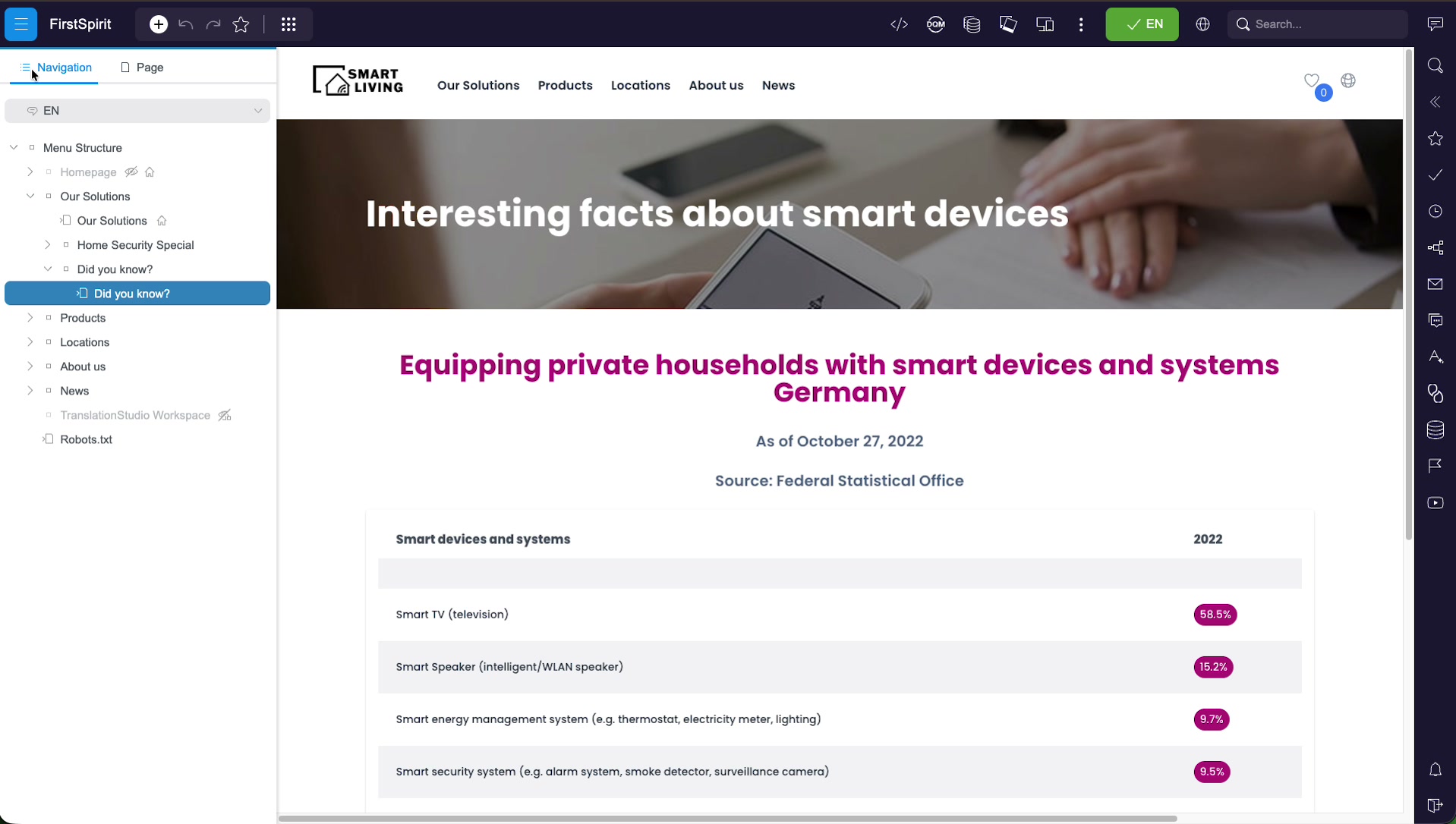
Working with the tree
- Expand / collapse a folder with the arrow (
>) to its left. - Click a node to open that page in the preview — the tree and the preview stay in sync, so the current page is always highlighted.
- The language selector at the top (e.g.
EN) switches the tree and preview to another content language. - Node actions appear on hover as a context (three-dot) menu — e.g. open, bookmark, or show metadata for that element.
Special nodes
Alongside ordinary pages you may see structural entries that are not part of the public menu, for example a TranslationStudio Workspace or a Robots.txt node. Icons next to a node indicate its role — such as the homepage marker or a “hidden in navigation” badge.
Independent of the front end
Because the tree navigates the project structure directly, it does not depend on a running front end. This matters in headless projects: in a setup phase, when the front end does not exist yet, you can still navigate between content objects, build the structure and pages, and edit their individual elements through the Page tab — content work does not have to wait for the front end.
Visited Lately
The Visited lately panel — the history / clock icon on the workbar — lists the elements you have opened most recently, newest first. It is the quickest way to hop back to a page or dataset you were just working on without hunting for it in the tree again.
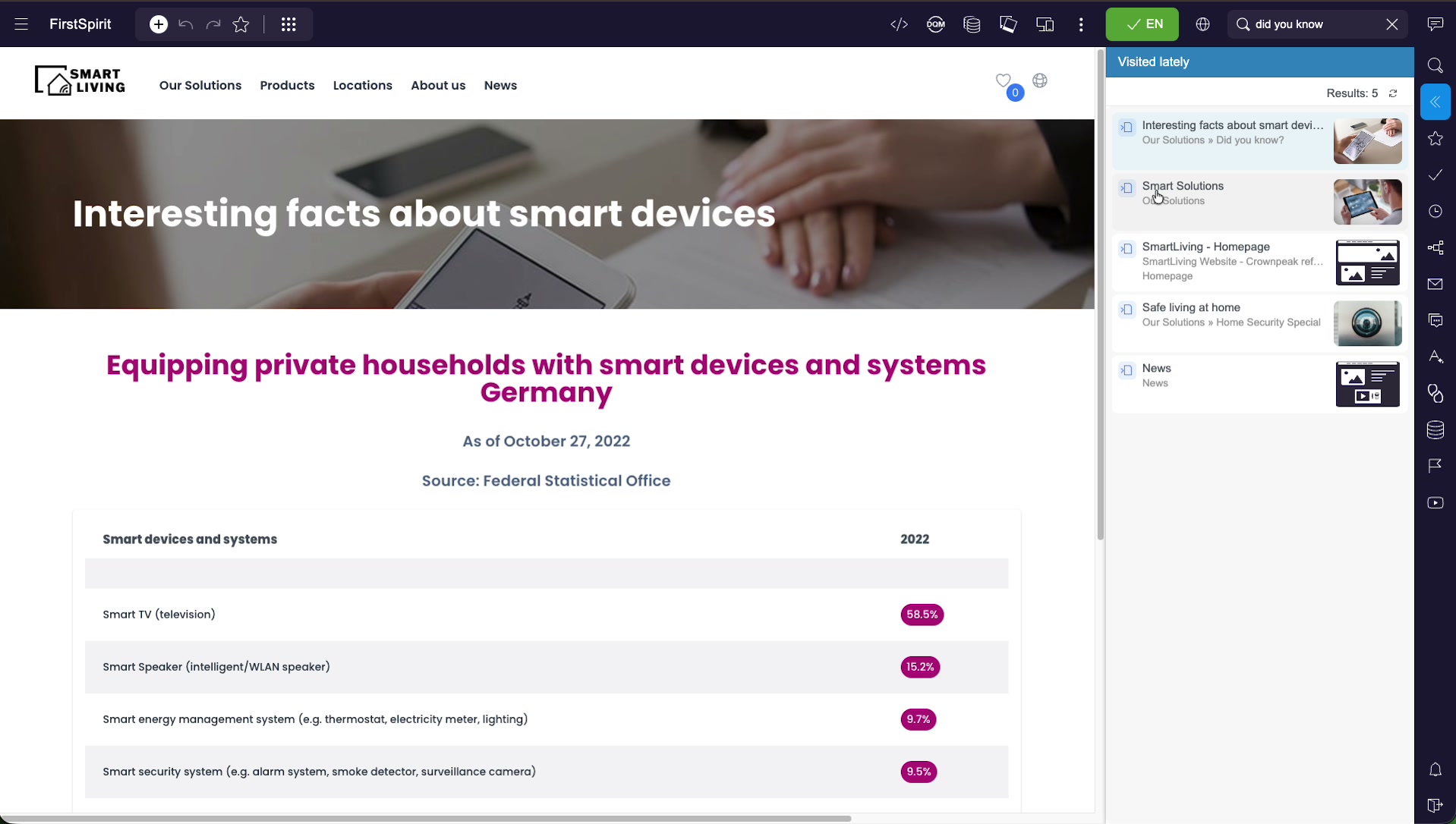
Each entry shows the element name, its location (breadcrumb path, e.g. Our Solutions » Did you know?) and a small preview thumbnail. Clicking an entry reopens that element straight away.
Internal Search
The Search… box in the top-right of the toolbar searches the whole project — not just page titles, but the content inside elements too. As you type, results appear in a panel on the right and update live.
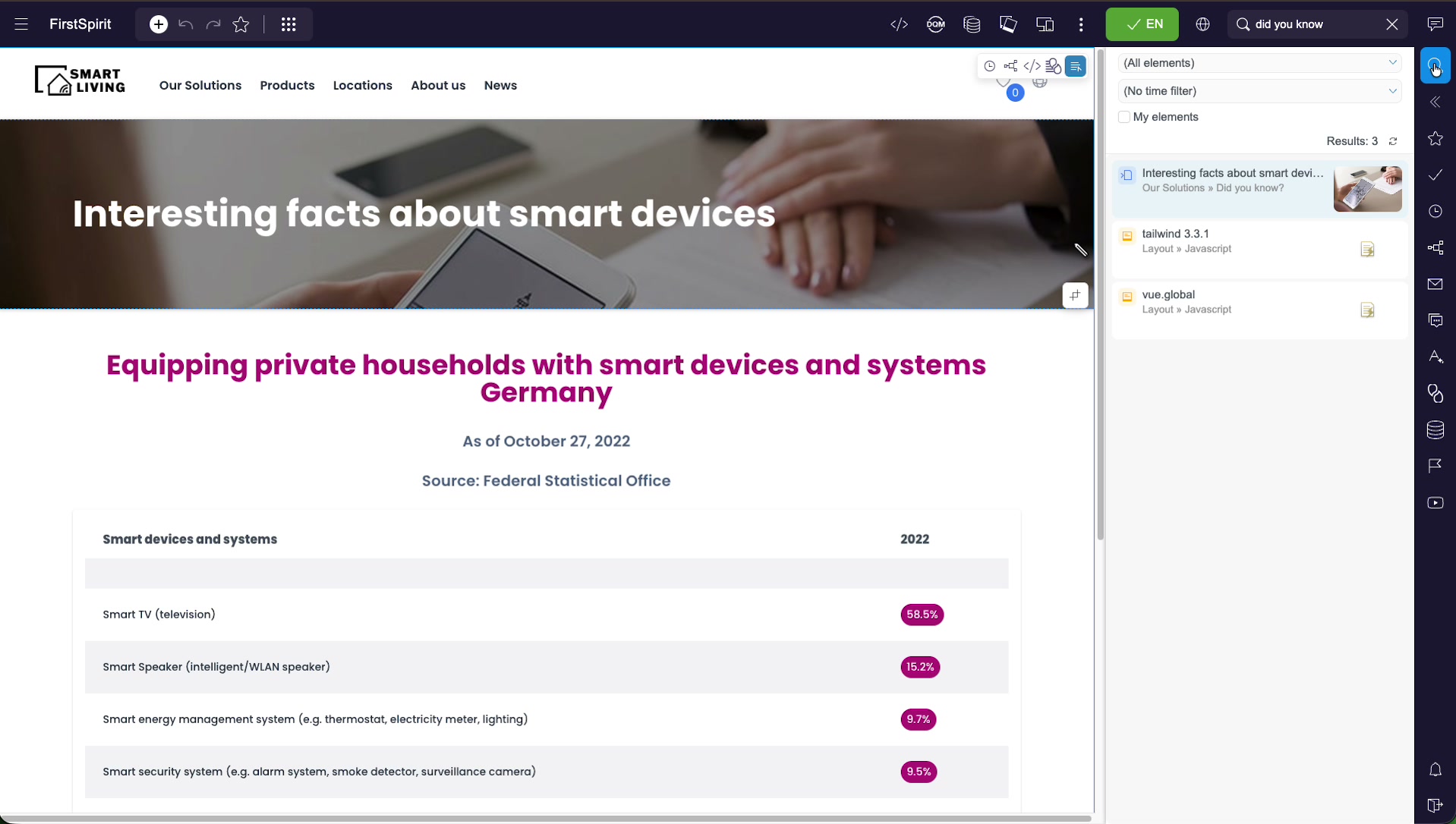
Search looks across many element types at once, so a single term can surface pages, sections, media and datasets together. Each result shows its name, its path in the project, and (where available) a thumbnail so you can recognise it at a glance.
Filtering & Scoping
Two dropdowns and a checkbox above the results let you narrow a broad search down to what you actually want:
| Control | What it does |
|---|---|
Element-type filter(All elements) | Restrict results to a single kind of element — e.g. only pages, only media, or only datasets — instead of everything at once. |
Time filter(No time filter) | Limit results to elements changed within a period (for example, recently edited elements). |
| My elements | A checkbox that narrows the results to elements you last changed, useful for picking up your own work. |
The Results count updates as you apply filters, so you can see immediately how much a filter narrowed the list. A refresh control next to the count re-runs the search.
Result Types & Jumping to Elements
Because search spans the whole project, a common term returns a rich mix of results. Searching for camera in the sample project, for instance, returns 19 hits spanning several element types:
- Pages (e.g. a Standard Page under Products » Security)
- Sections and content fragments within pages
- Datasets (e.g. the Goomazon Oklexa SP93 product record)
- Media (e.g. images under Images » Products)
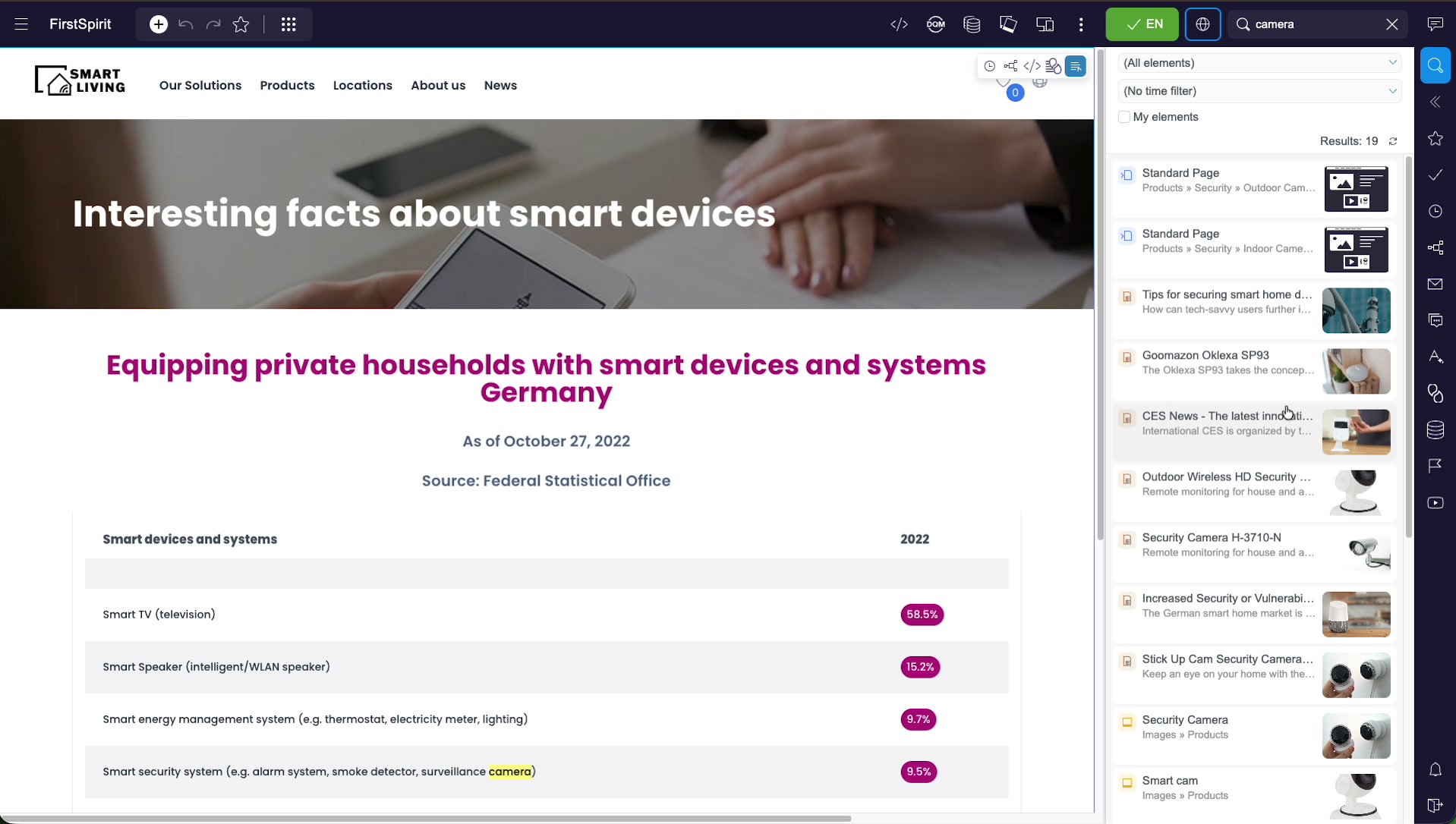
Click any result to jump straight to that element: pages and sections open in the preview with the matching text highlighted, datasets open in their data source, and media open in the media library. This is why search is usually the fastest way to reach a known element — you skip the tree entirely.
Search is context-aware
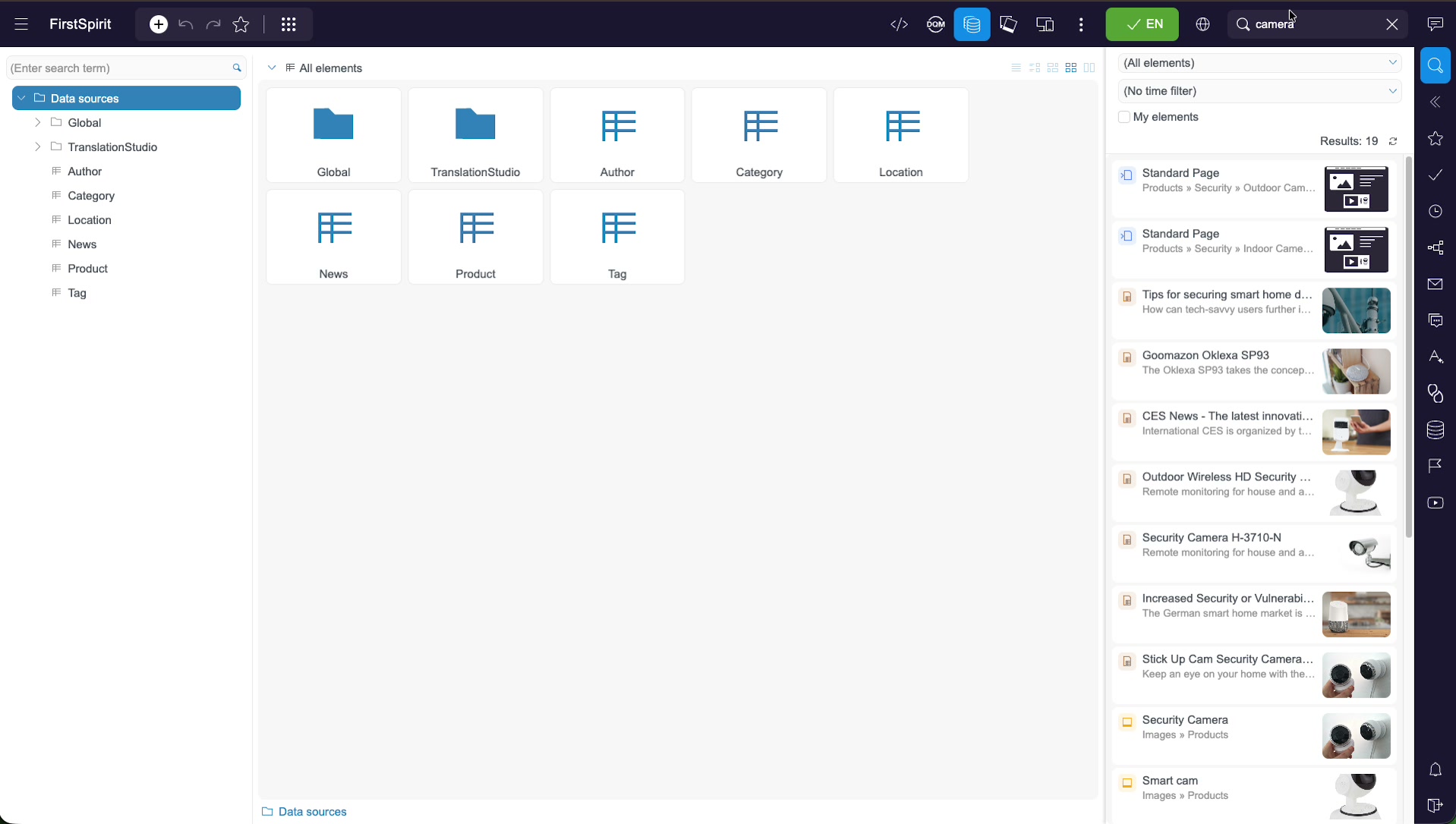
Where a result takes you depends on where you currently are. Search for a product from the preview and clicking the result lands you on its product detail page. Run the same search with the data sources report open, and clicking the result opens that product as a dataset in its data source instead. ContentCreator drops you into the menu that matches your current context, so you reach the relevant resource in the way that fits the task at hand.
Reports & Data Sources
Not everything lives on a page. Datasets (structured content such as products or news) and media are reached through the reports on the workbar rather than the site tree.
Opening the data sources report lists the available data sources — for example Product, Category, Location, News, Author and Tag — which you can view as tiles or as a list.
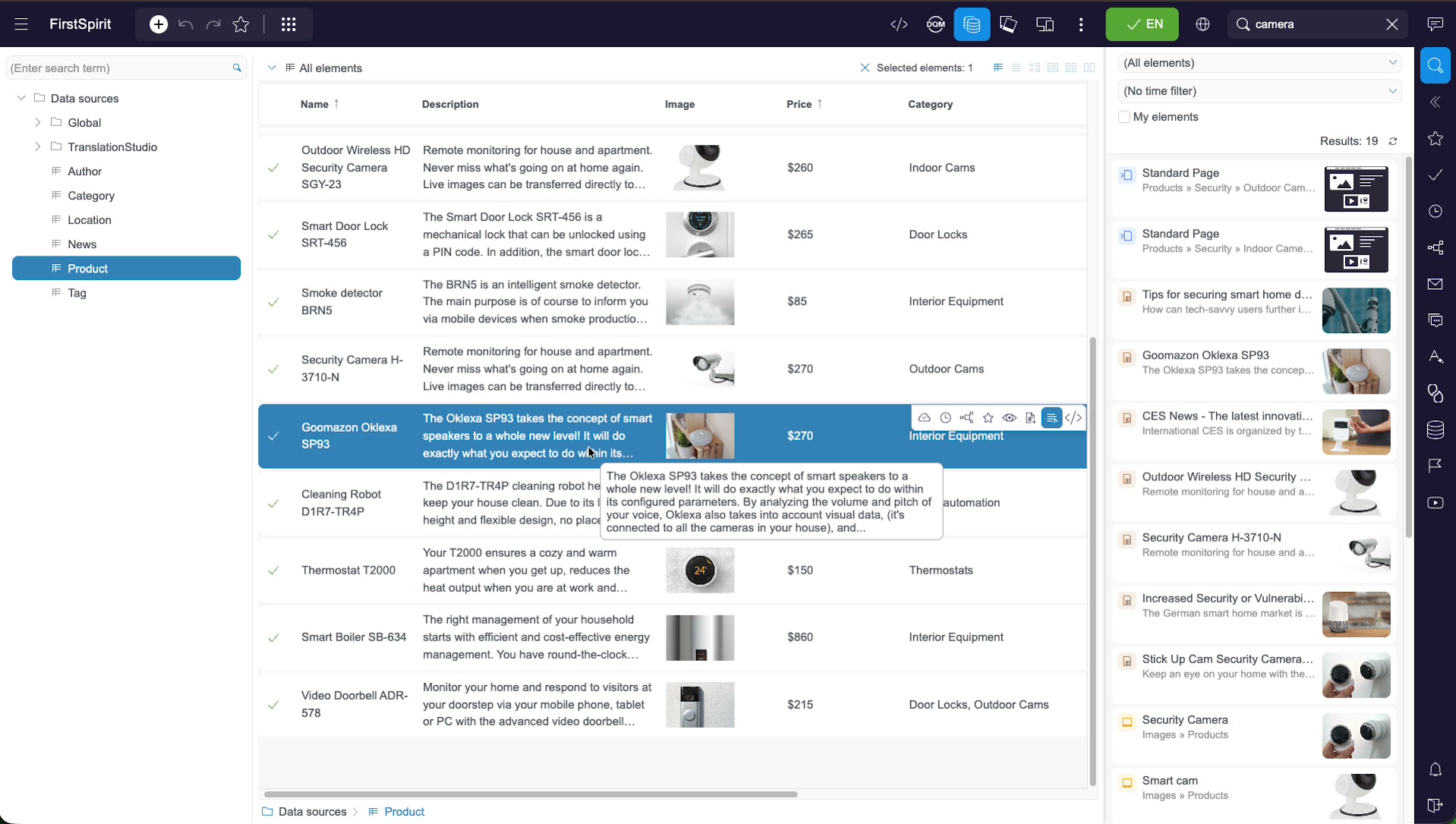
Opening a data source shows its records in a table you can sort and browse. Each row is one dataset; the columns are the fields of that content type — here a product’s name, description, image, price and category.
Quick Reference
| Goal | How |
|---|---|
| Open a page you can see | Click its link in the preview. |
| Open a page by its place in the menu | Workbar → Navigation tab → expand the tree → click the node. |
| See the sections of the current page | Navigation panel → Page tab. |
| Switch content language | Language selector (EN) in the toolbar or atop the navigation tree. |
| Reopen something you just had open | Workbar → Visited lately. |
| Find any element by name or content | Type in the Search… box; click a result to jump to it. |
| Narrow a search | Use the element-type and time filters, or tick My elements. |
| Find a dataset or media asset | Workbar → data sources / media report. |
Related documentation
- ContentCreator: An Introduction for Editors — the full editor tour.
- Working with Data Sources in ContentCreator — editing datasets.
- Report Integrations in ContentCreator — what else the report rail can do.