Report Integrations in ContentCreator
Integrations are how FirstSpirit reaches beyond its own repository — pulling external content in, sending content out to other systems, and wiring third-party services into everyday editing. They surface in many places: a search-and-pick field on a form, a button that calls an API, a workflow step, an upload connector, an AI action, a background sync — and, most visibly, the report sidebar in ContentCreator. This guide first maps where integrations live across FirstSpirit, then focuses on report integrations: it walks through two of them (Project History and a YouTube search report) and shows how an editor uses a report result on a page.
Where integrations live in FirstSpirit
“Integration” is a broad idea in FirstSpirit: any point where the CMS connects to something outside a single editor's typing — another system, the wider repository, or an AI model. Some integrations bring data in (a product catalogue, a video library, a digital-asset manager); others push content out (to a translation service, a deployment target, a messaging channel). They appear at six main touchpoints:
| Where it lives | What it does | How you meet it as an editor | Example |
|---|---|---|---|
| Report sidebar | Streams repository or external data into a side panel you can search and drag from. | An icon in the right-hand report rail. | The YouTube report in this guide. |
| On a content object / form field | A field that searches an external system so you can pick a record, or a button that runs an action on the object you are editing. | A search-and-pick list or a button inside the editing form. | Pick a product from an external PIM; a button that turns an address into map coordinates. |
| In a workflow | A workflow step that calls an external system as content moves through review and release. | A workflow action button in the status dialog of a page, section or dataset. | An Approve step that sends the text to a translation service or posts a notice to a chat channel. |
| In asset management / uploads | A connector that brings an external media library into FirstSpirit, or logic that runs when media is uploaded. | Browsing external assets in a picker, or automatic handling the moment you upload. | A DAM picker that places remote images; a service that syncs an external asset library into the Media Store. |
| In AI / Smart features | The AI assistant calls registered functions against external systems while it generates, translates or summarises. | Generate / translate / summarise actions that reach live, project-specific data. | A translation that pulls approved terminology from a glossary mid-generation. |
| In the background | Scheduled tasks and always-on services sync data or listen for events with no editor present. | You see the result — fresh datasets, imported media — not the mechanism. | A nightly task that imports an external product feed into the Content Store. |
Whatever the touchpoint, the pattern is the same: a developer builds the connector as a module, and you use the finished result. The rest of this guide zooms in on the most visible touchpoint — the report sidebar.
For developers. Each touchpoint maps to a real extension point. Report panels and search-and-pick lists are Data Access Plugins (DataAccessPlugin, surfaced in forms throughFS_INDEX); form buttons run anExecutablewired to anFS_BUTTON; workflow steps run workflowExecutables bound to their transitions; media/DAM connectors are built as aService(often paired with a Data Access Plugin for the picker); background jobs are schedule tasks (ScheduleTaskApplication) or long-running services; and AI actions use the Generative AI Connector (GenerativeAIConnectorPlugin) with function calling (GenerativeAIFunction). All are packaged in an FSM module and declared inmodule.xml.
What are report integrations?
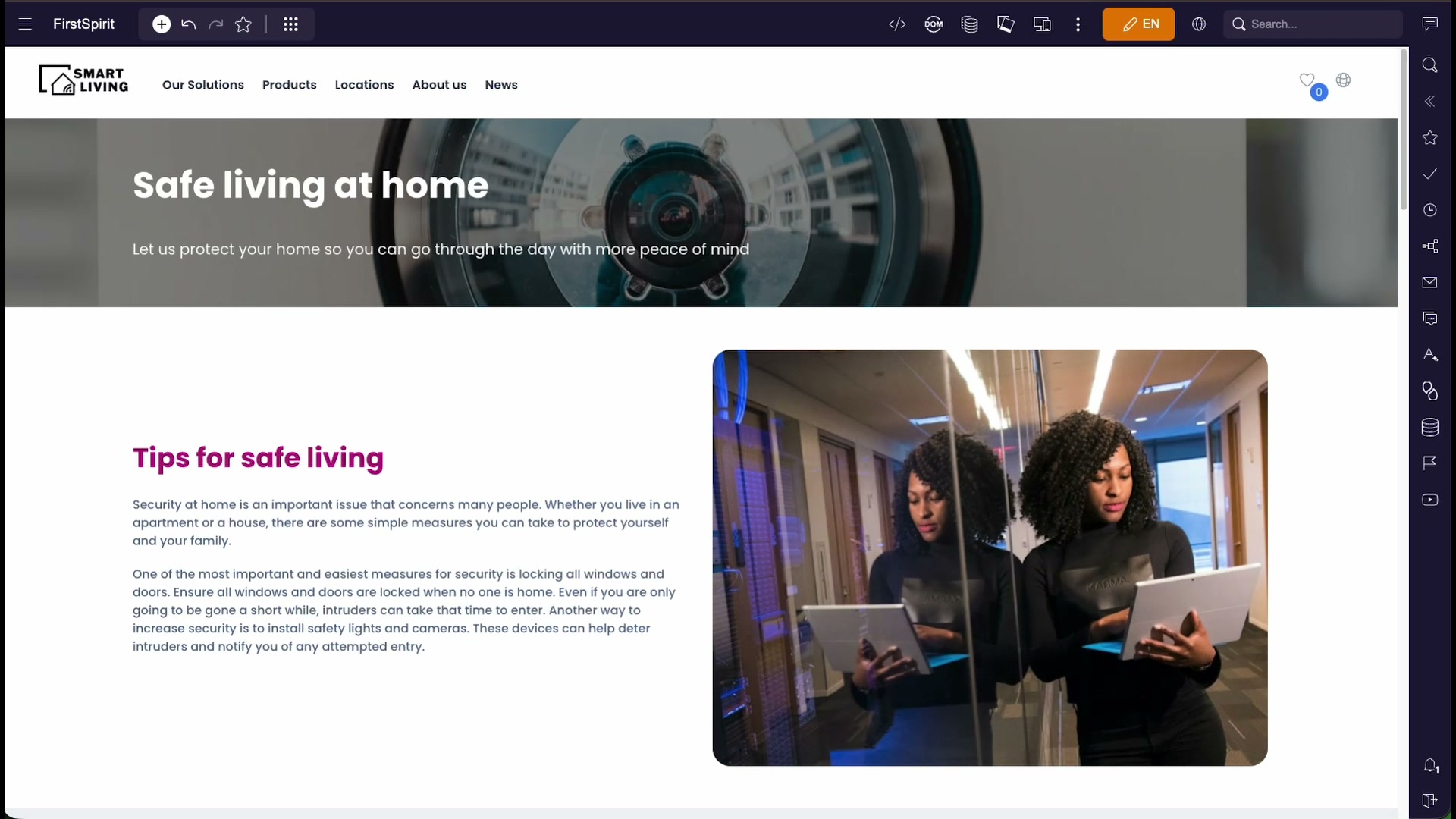
When you edit a page in ContentCreator, the page preview sits in the middle of the screen and a slim rail of icons runs down the right-hand edge. Each icon opens a report — a panel that slides in from the right and shows information related to your work.
Some reports are built into FirstSpirit; others are integrations added to a project to pull in data from elsewhere — the FirstSpirit repository (revisions, media, bookmarks) or an external service (a video platform, a digital-asset manager, a translation system, and so on). To an editor they all look and behave the same way: click an icon, a panel opens, you read or search, and you can often drag a result directly into the page.
The report sidebar
The report rail collects every report available in the project into one column. A typical rail mixes standard FirstSpirit reports with project-specific integrations, for example:
| Report | What it shows |
|---|---|
| Search | Full-text search across the project's content. |
| Bookmarks | Objects you have marked for quick access. |
| Tasks / workflows | Items waiting on you in a release or editorial workflow. |
| Project History | The change history of the object you are editing (see below). |
| Media & data | Reports that list media, datasets or other repository content. |
| Integrations | Project-specific reports that reach out to an external service — for example the YouTube report described below. |
Click an icon to open its panel; click it again (or the collapse control) to close it and return the full width to the preview. Only one report panel is open at a time.
How an integration works
A report integration is typically a small module that does three things: it queries a data source, it renders the results as a list in the report panel, and it lets the editor act on a result — for example, drag it onto the page. The source can be the FirstSpirit repository itself or an external system reached over an API. What that action does is up to how the integration was built: dragging a result onto your website or frontend could automatically create the matching section, drop in an image, add a dataset reference or a link, or fill a field on the object you are editing.
Note: Building a report integration is a developer task — the queries, the result layout and what a dragged result becomes on the page are all defined in a module. As an editor you consume the finished report; you don't configure it.
The Project History report
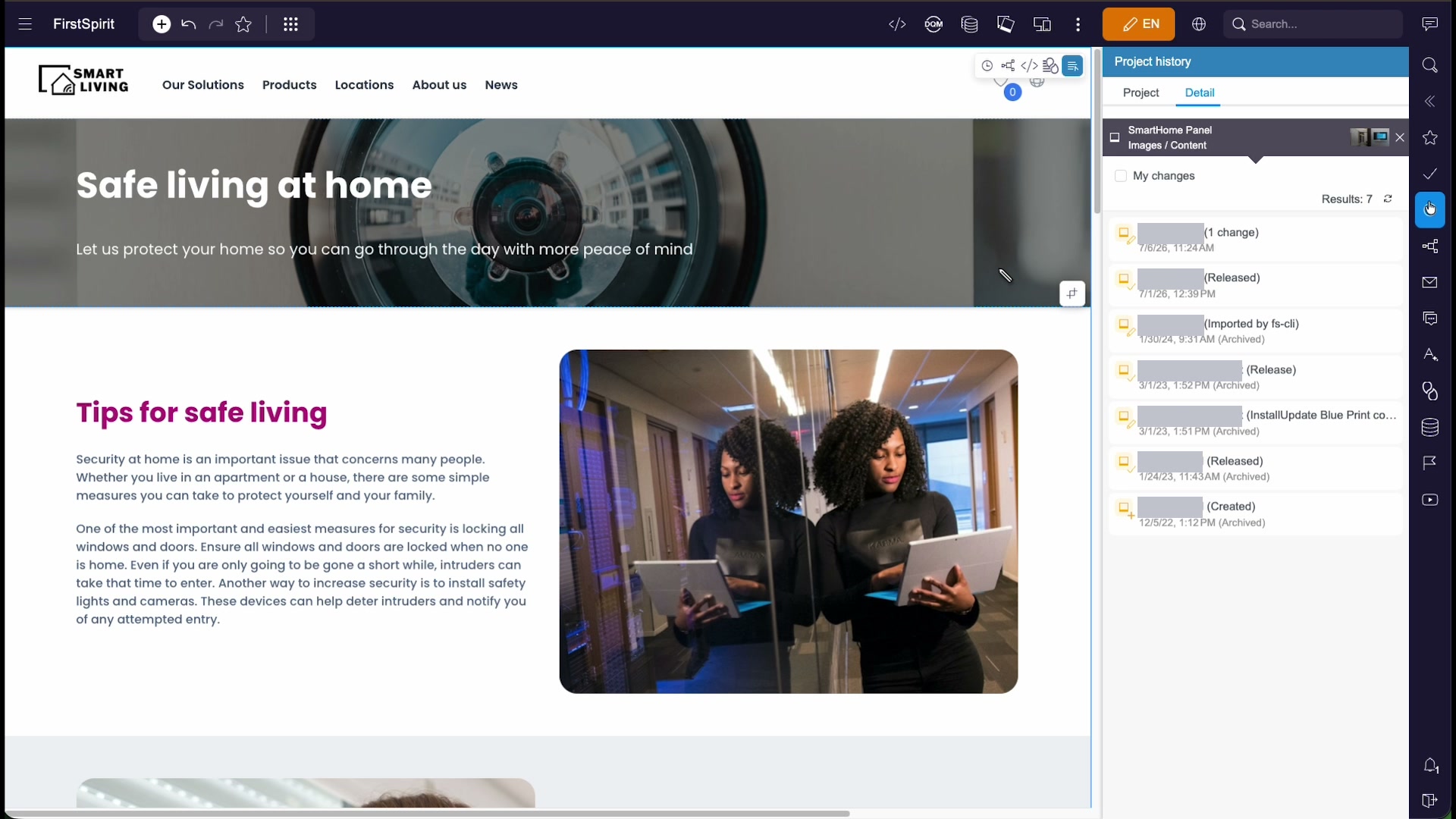
The Project History report answers a common question: what happened to this object, and who did it? Open it while a page or section is selected and it lists that object's revisions, newest first.
The panel has two tabs — Project (history across the whole project) and Detail (history of the selected object) — and a My changes filter to narrow the list to your own edits. A header chip shows which object the history belongs to, and a results count with a refresh control sits above the list.
Each entry in the list carries three things:
| Part of an entry | Meaning |
|---|---|
| Who | The account that produced the revision. This can be a person or an automated process (a deployment tool, an import). |
| When | The date and time of the revision. |
| State | What kind of change it was — for example Created, Released, or Archived. |
Because deployment and import steps also write to the history, you will see machine-generated entries alongside human edits — for example a revision labelled "Imported by fs-cli" (a command-line deployment) or one tied to a project-template update. That is normal: the history is a complete audit trail, not just a list of editor saves.
The YouTube report
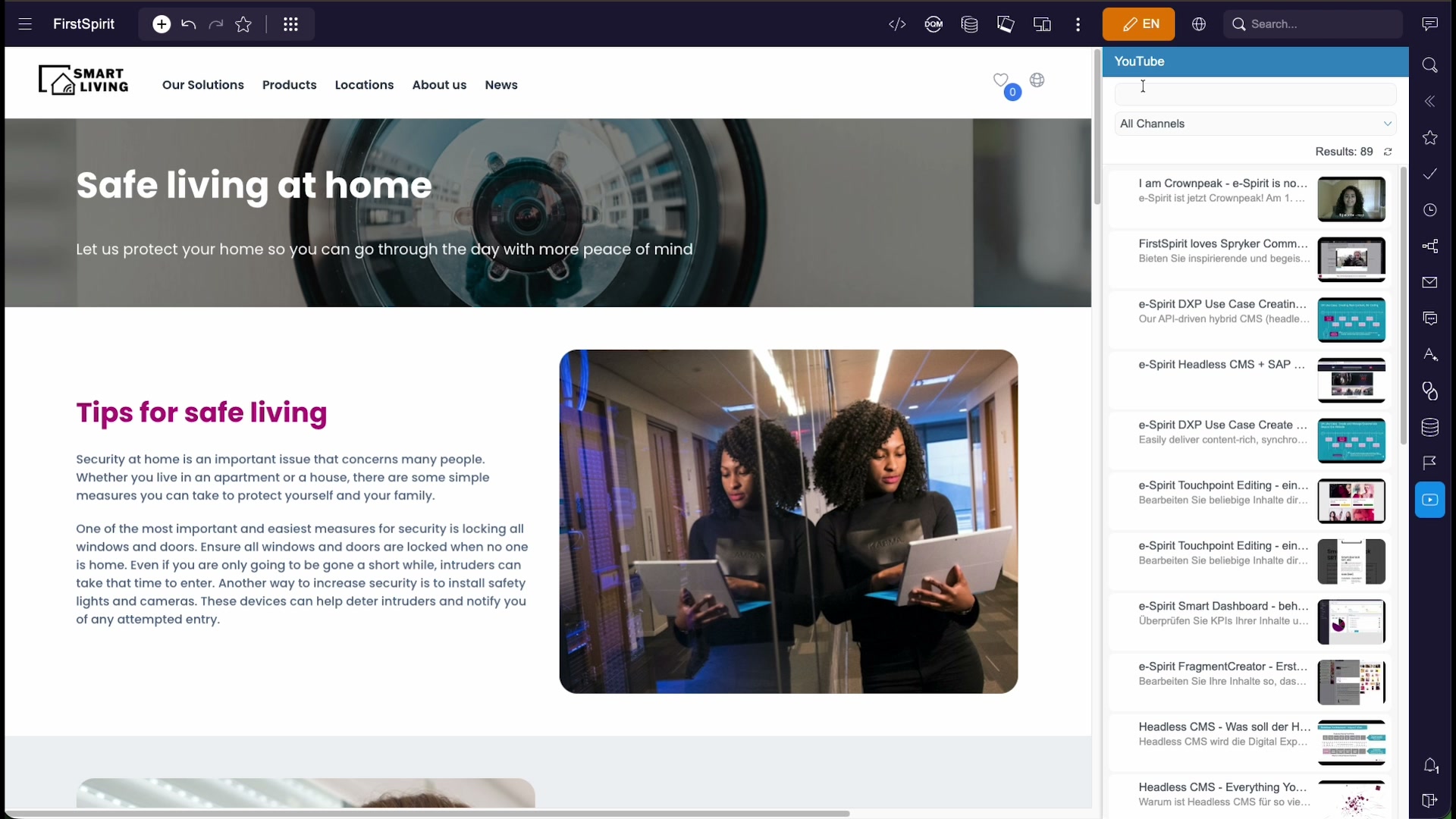
The YouTube report is an example of an integration that reaches outside FirstSpirit. Instead of showing repository content, it searches a configured video channel and returns matching videos — ready to embed on a page.
The panel gives you:
- a search field to type a keyword;
- a channel filter (an All Channels dropdown) to limit the search to one configured channel;
- a results count with a refresh control; and
- a scrollable list of videos, each with a thumbnail, title and short description.
Opening the report with no search term lists everything the configured channel offers. Typing a keyword narrows it — searching for smart, for instance, reduces a long list to the handful of videos that match.
Placing a result on the page
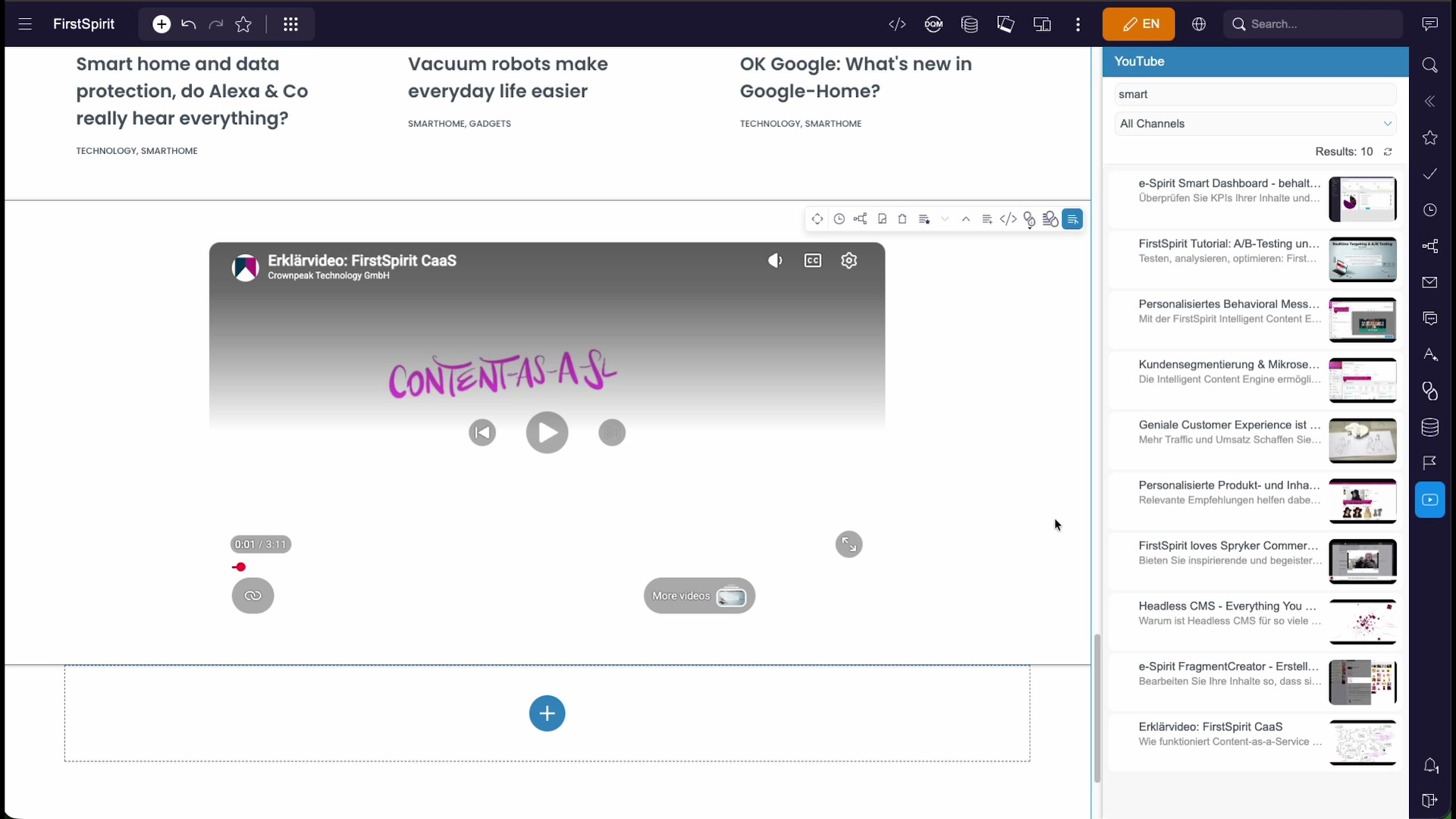
A report is only half the story — the point of an integration like this is to use a result. In this demo project it is wired so that dragging a video out of the report and dropping it onto your page can automatically create the corresponding section — here, a section that embeds the video, complete with the usual section toolbar for further editing. A different project could wire the same gesture to do something else entirely, so treat the steps below as how it behaves here, not a fixed rule:
- Open the YouTube report and search for the video you want.
- Drag the result from the panel onto an empty content area (or an add-content slot) in the page.
- Release the mouse. In this project a new video section appears in the page, playing the chosen video.
- Adjust the section like any other — use its toolbar to move, edit or remove it — then save and release the page.
Tips & good practice
- One panel at a time. Opening a report replaces the one that was open. Collapse the panel to give the preview its full width back.
- Search before you scroll. Reports that list or fetch a lot of content — history, media, videos — are much quicker to use through their search field or filter.
- Read the history before you edit. A quick look at Project History tells you who touched an object last and whether it is released — useful before making or releasing a change.
- Expect machine entries. Deployments and imports appear in the history as automated revisions; they are part of the audit trail, not errors.
- Drag, don't copy. Where an integration supports it, use its drag-and-drop to place a result — it can wire up the right section template for you instead of you pasting a raw link or ID.
- Your reports may differ. The rail reflects your project's modules and configuration; another project will offer a different set of integrations.