SiteDev — Template Development in ContentCreator
SiteDev (the Development Tools in ContentCreator) let project developers make everyday template changes — forms, rules, output channels, snippets — without leaving ContentCreator and switching to SiteArchitect. This guide follows a walkthrough of the tools: opening the template store, editing a section template's form and HTML output, and using the built-in DQM quality analysis and AI Code Assistant.
What is SiteDev?
SiteDev is the informal name for the Development Tools in ContentCreator — a built-in set of editors that expose the FirstSpirit template store directly inside ContentCreator. Instead of opening the SiteArchitect desktop client for every small change, a developer can adjust a template's form, rules, output channels and more from the same browser window an editor uses.
The goal, in the words of the official documentation, is to help project developers "complete easy development tasks fast and comfortably." It is aimed at routine adjustments made close to the content, not at replacing the full development environment.
Reference: Crownpeak's official documentation for these tools is Template Development in ContentCreator. This guide summarises a hands-on walkthrough and points back to it for the full feature list.
Scope & boundaries
The development tools deliberately cover the common tasks a developer does day to day. They are powerful, but they are not a full replacement for SiteArchitect.
What you can edit
| Area | What it covers |
|---|---|
| Forms (GOM) | The input form of a template — add, remove and arrange input components. |
| Rules | Dynamic form logic (validation, visibility, dependencies). |
| Output channels | The HTML (and other) rendering of a template. |
| Snippets | The label/thumbnail a template shows in lists and reports. |
| Database schemata & queries | Schema mappings and query definitions. |
| Workflows | Workflow definitions and their state diagrams. |
Opening the development tools
The tools live behind the code icon (</>) in the ContentCreator top toolbar. When you have the right developer permissions, clicking it opens the template store report in place of the page preview.
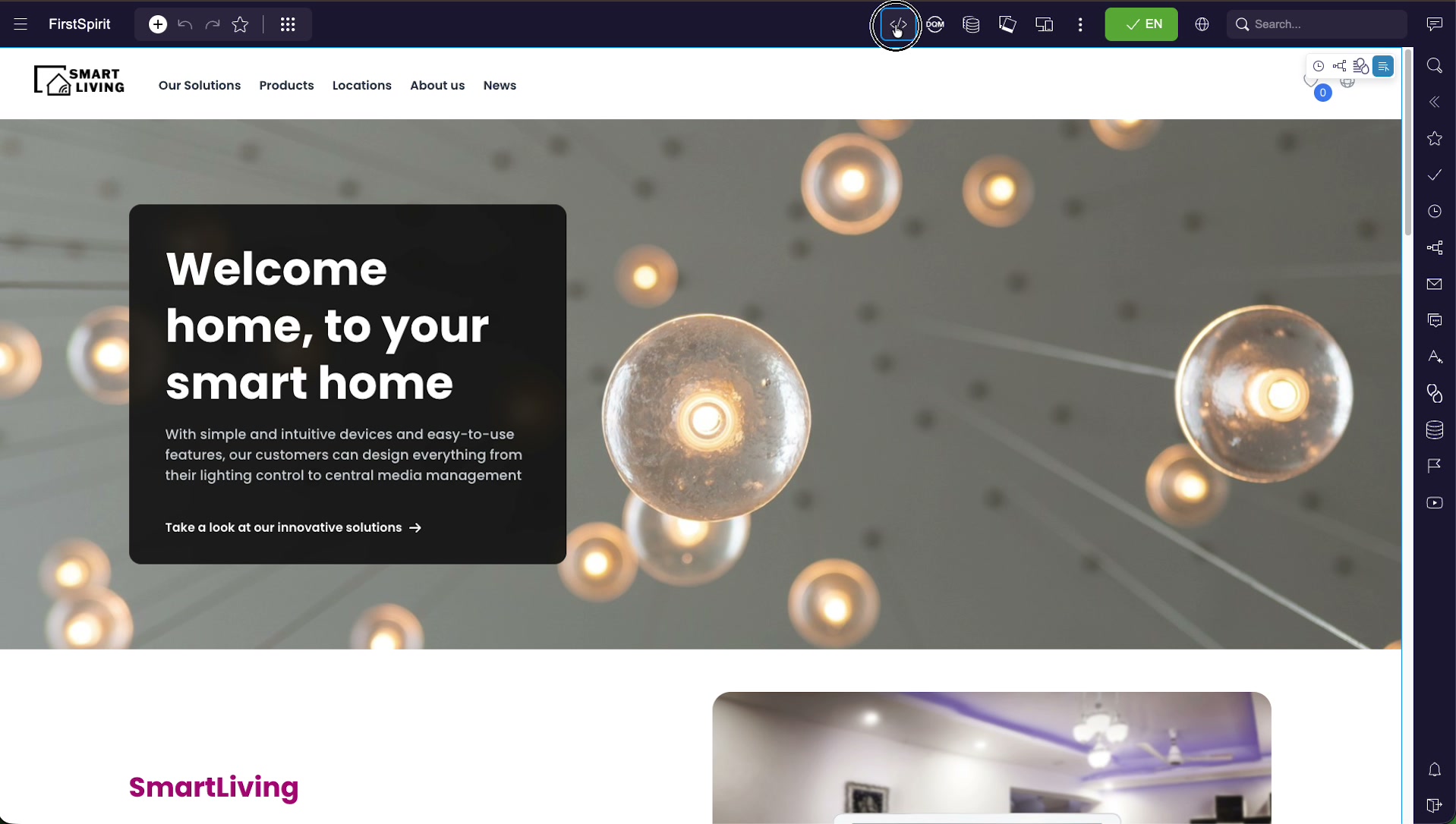
</> code icon in the toolbar (highlighted) opens the development tools.The template store
The development report shows the project's template store as a familiar tree. Each node is a category of template or template-related object:
- Page Templates — the layouts behind pages.
- Section Templates — the reusable content blocks placed on pages.
- Link Templates — how links are configured and rendered.
- Format Templates — reusable rendering fragments and inline formats.
- Scripts — BeanShell scripts used across the project.
- Workflows — release and editorial workflows.
- Database Schemata — schema and query definitions.
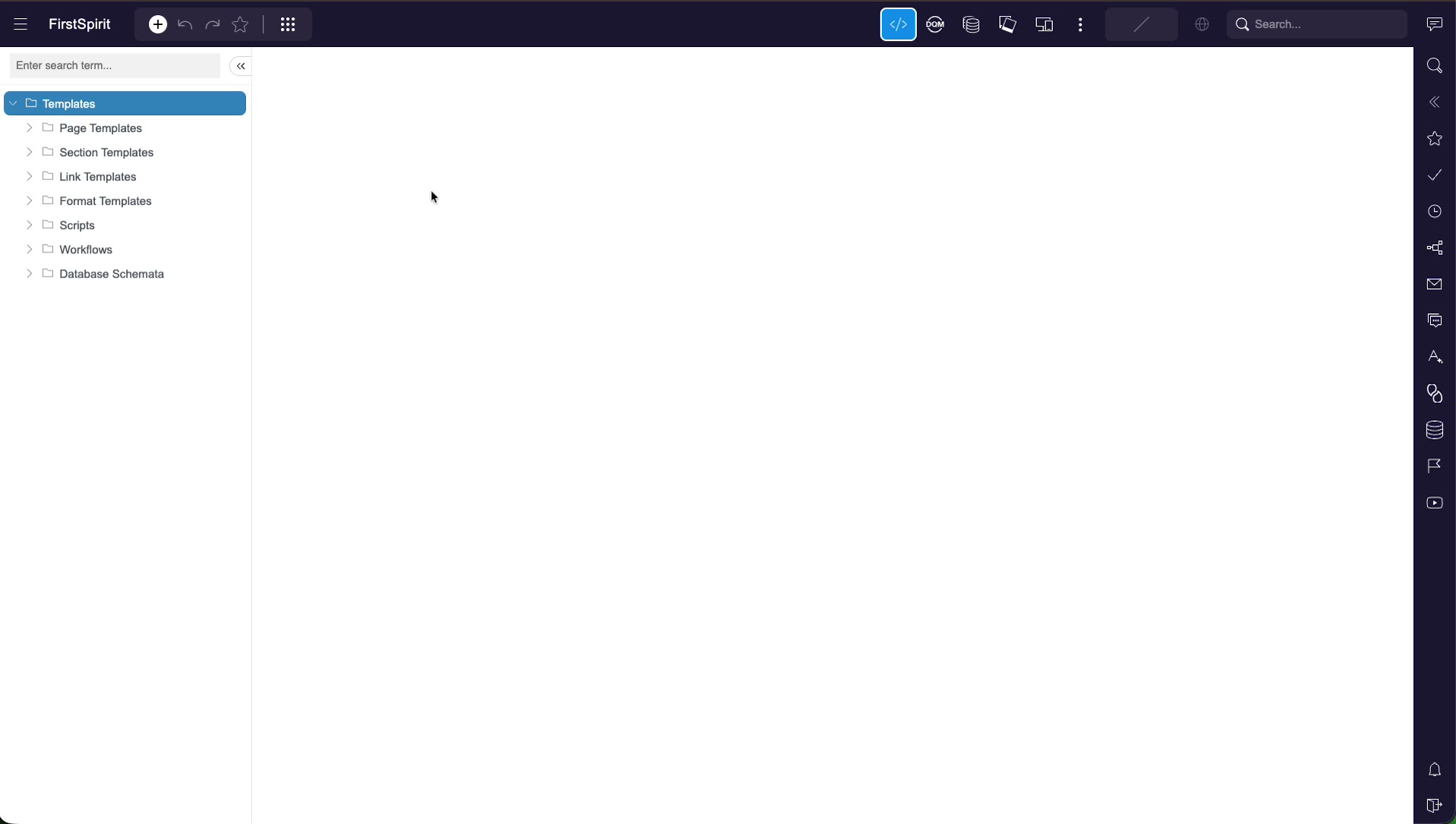
The form (GOM) editor
Opening a template — here the teaser section template — lands on the Form tab. This is the visual editor for the template's form definition (GOM), split into three panels:
- Available components (left) — a palette of input components you can drag into the form:
Text input,Rich textfield(CMS_INPUT_DOM),Combobox,Checkbox,Date input,Reference,Link,List,Number input,Image mapand more. - Form structure (middle) — the current form as a tree of groups and fields (for the teaser: a Content group with
st_headline,st_text,st_image,st_image_alt_textandst_cta; a Style group; a sectionLifespan group). Drag to add or reorder. - Source (right) — the live XML of the form, kept in sync with the visual structure.
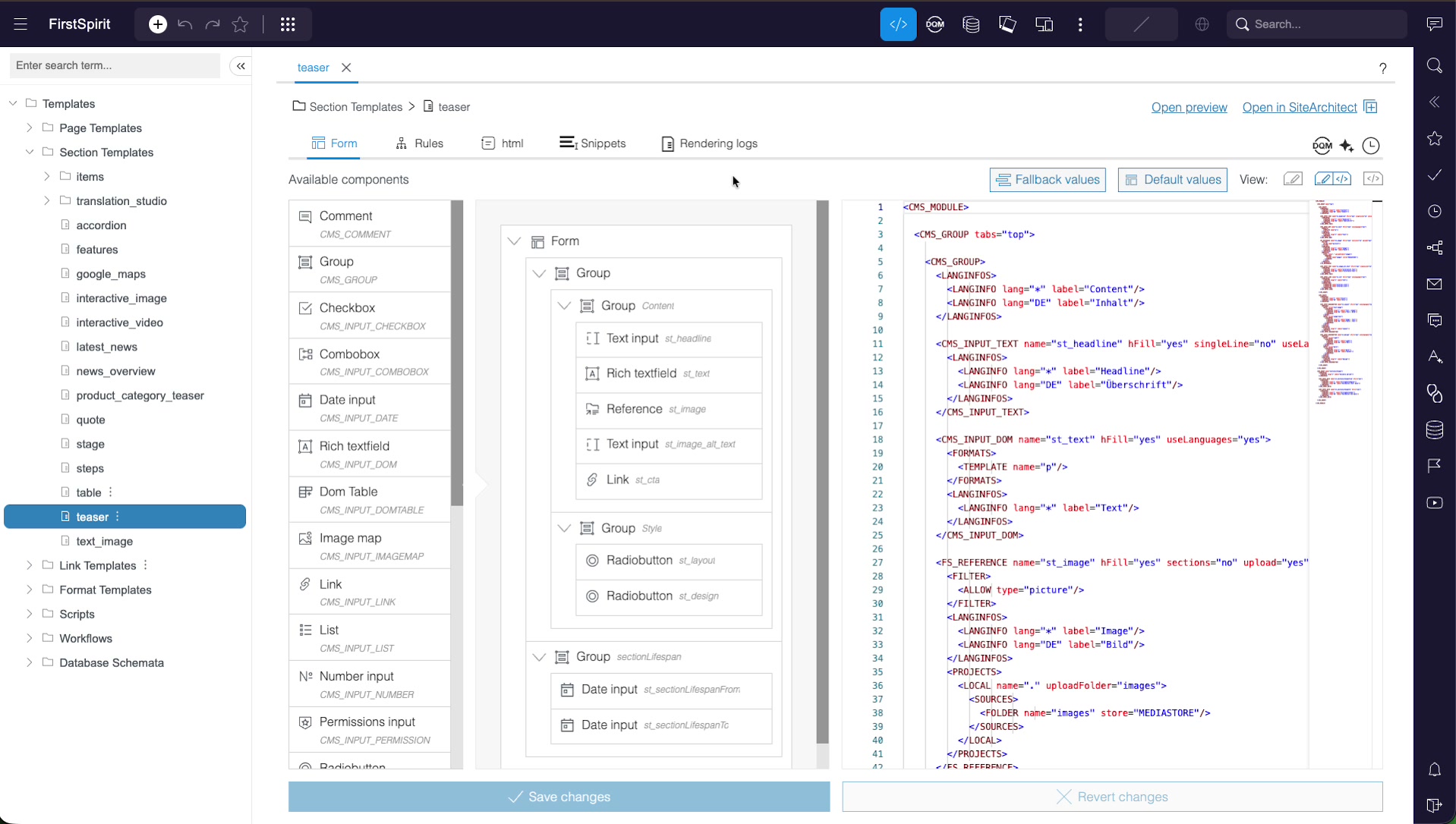
Above the panels, Fallback values and Default values let you inspect those aspects of the form, and a View switch toggles between the visual editor, a split view, and pure source. Nothing is committed until you use the Save changes button at the bottom; Revert changes discards them.
Source view & other tabs
Switching the View to source shows the whole form as editable XML — CMS_INPUT_TEXT, CMS_INPUT_DOM, FS_REFERENCE, CMS_INPUT_LINK and their LANGINFOS language labels. A minimap on the right helps you navigate long definitions, and the XML editor supports auto-completion.
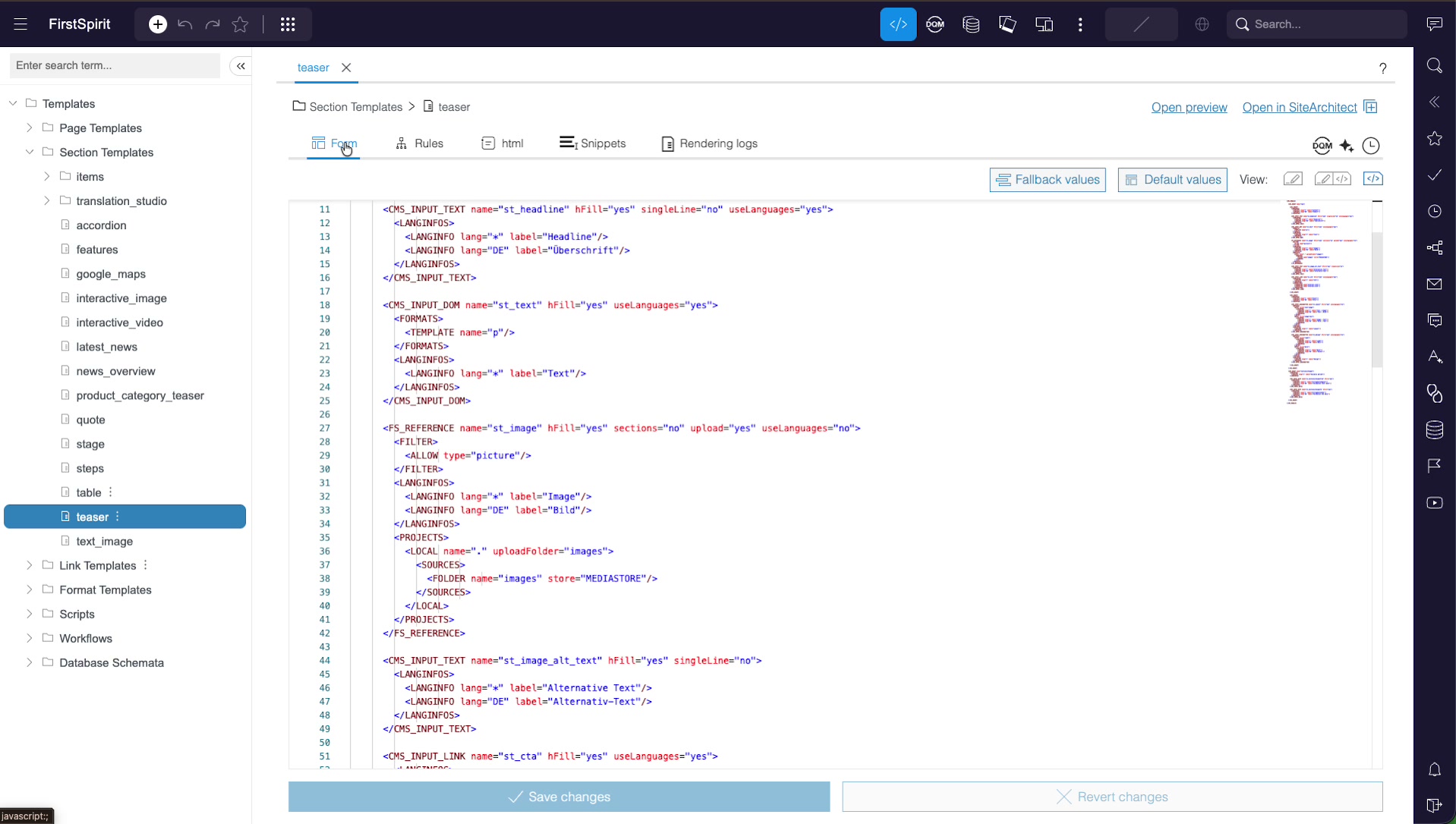
LANGINFO) and component attributes are edited directly as XML.The tabs across the top of every template give you the rest of its definition:
| Tab | Purpose |
|---|---|
| Form | The input form (GOM), visual or source. |
| Rules | Dynamic form logic — validation, visibility and dependencies. |
| html | The HTML output channel (other channels appear as their own tabs). |
| Snippets | The label and thumbnail shown for datasets/sections of this template. |
| Rendering logs | Rendering output and profiling to help diagnose template errors. |
The output channel editor
The html tab is the template's HTML output channel. It is a full code editor with FirstSpirit template syntax highlighting — $CMS_SET, $CMS_IF, $CMS_SWITCH, $CMS_VALUE, $CMS_RENDER — alongside the markup and CSS classes the template emits. A minimap gives a quick overview of long channels.
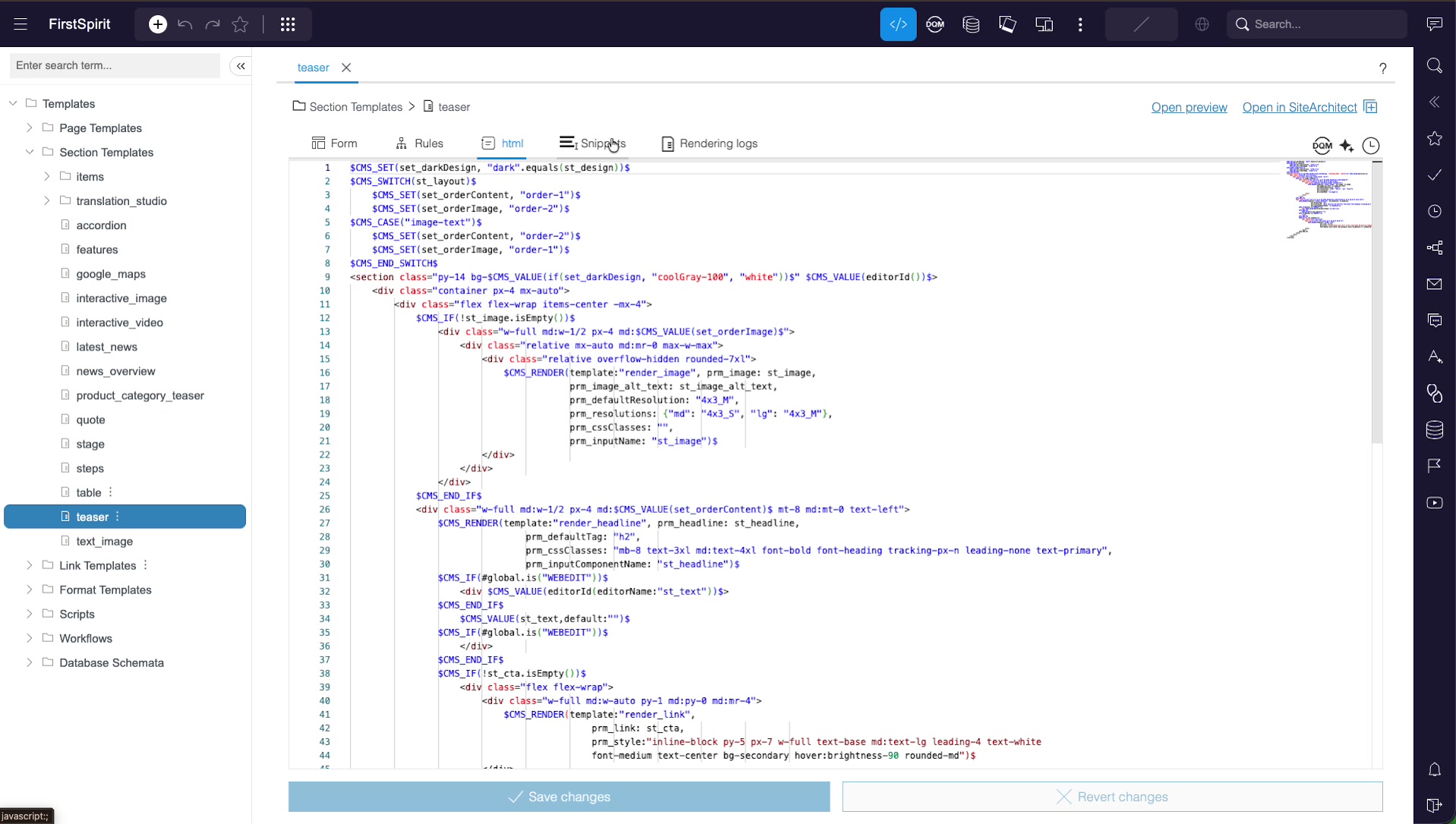
Ctrl+Space) and Emmet-style HTML shortcuts, and integrates FirstSpirit's online help — so you can write output-channel code comfortably without leaving the browser.Preview, save & SiteArchitect
While editing a template you always have three anchors at hand:
- Open preview — render the template with sample content to check your change before committing.
- Save changes / Revert changes — commit or discard the edits in the current tab.
- Open in SiteArchitect — hand the same template off to the full desktop client when a task exceeds the in-browser tools.
A version history is available per template, so changes made here can be compared and, if needed, restored.
DQM quality analysis
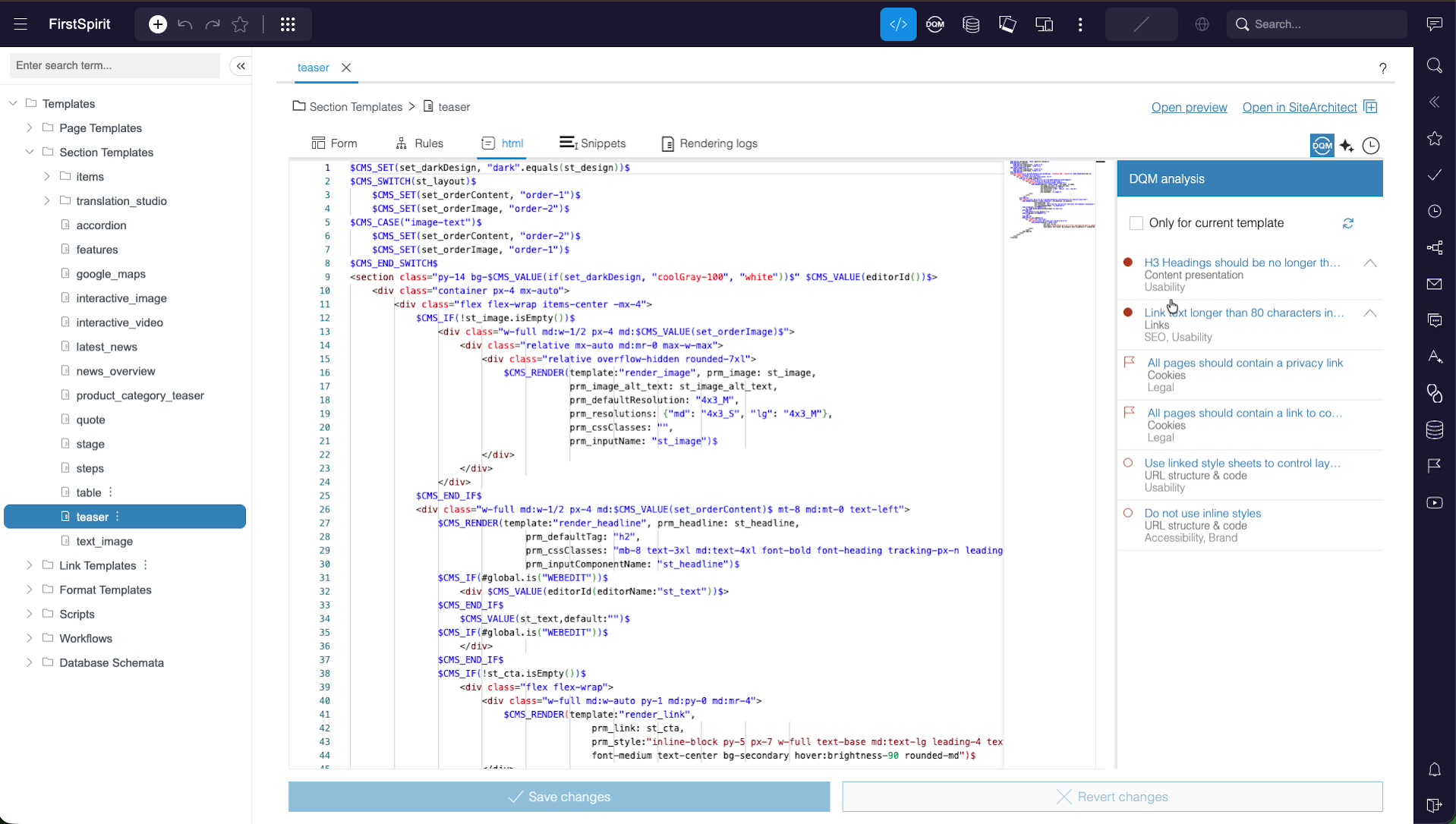
The output-channel editor includes a DQM (Digital Quality Management) panel. Run it and FirstSpirit checks the rendered output against a set of quality rules, listing issues grouped by category — usability, SEO, accessibility, legal and brand. Examples from the walkthrough:
- "H3 headings should be no longer than…" — Content presentation, Usability
- "Link text longer than 80 characters…" — Links, SEO, Usability
- "All pages should contain a privacy link" — Cookies, Legal
- "Do not use inline styles" — URL structure & code, Accessibility, Brand
An Only for current template filter narrows the results to the template you are editing, so you can see the quality impact of your own change immediately.
The AI Code Assistant
Next to DQM sits an AI Code Assistant. It reviews the template's code against a configurable prompt and reports back — for a clean template, simply "No issues were found!"
The prompts it runs are editable. In the walkthrough, a Global Prompt named AnalyzeHtml instructs the assistant to act as a Generative Experience Optimization (GEO) expert and check the HTML for JSON-LD availability, content parity between structured data and visible text, structured-data coverage, and machine-readable content structure (FAQs, headings, alt-texts, metadata).
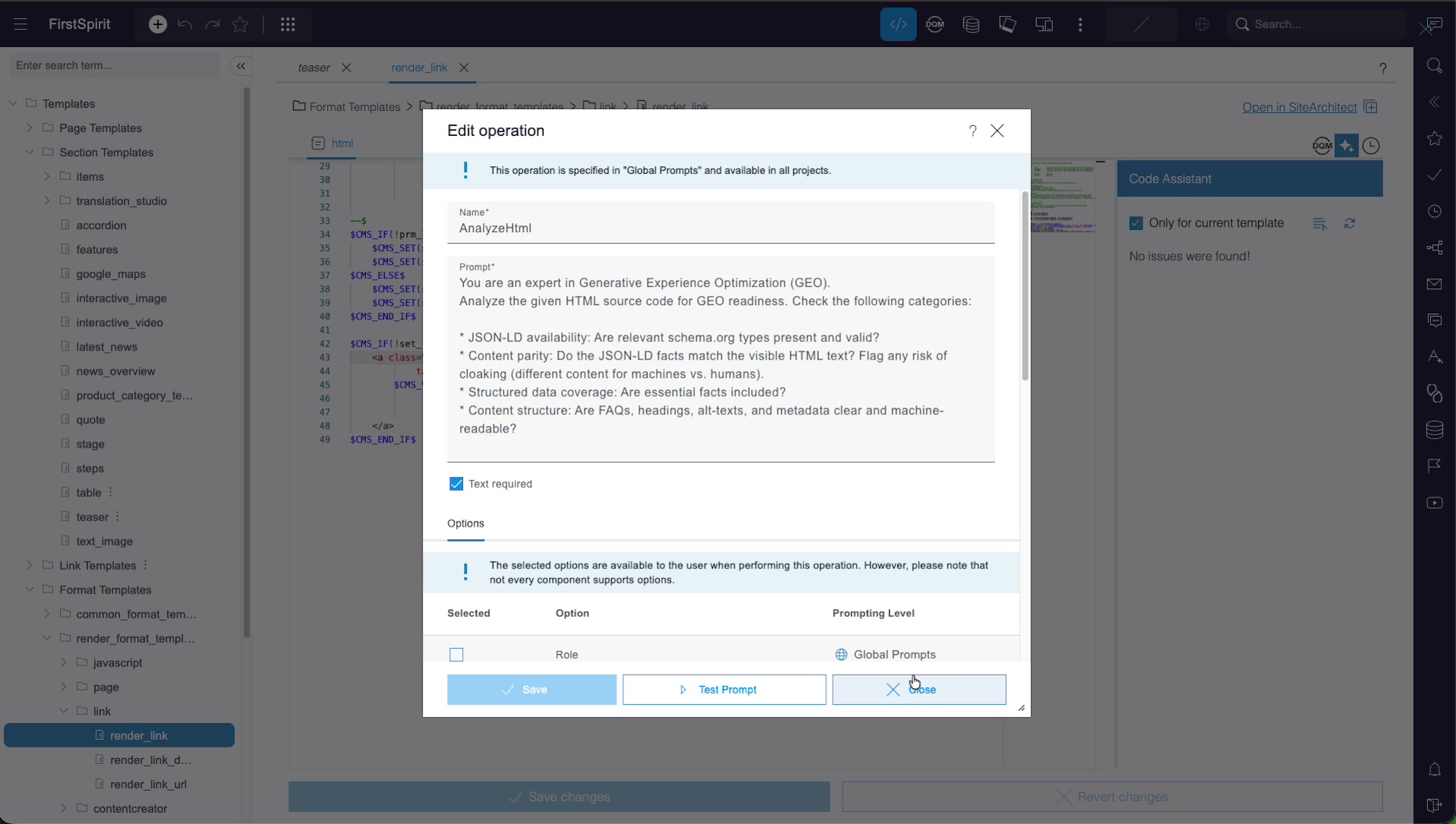
AnalyzeHtml Global Prompt. Prompts can be tested (Test Prompt) and reused across projects; the Code Assistant runs them against the current template.Note: Global Prompts are shared operations — a banner in the dialog notes the prompt is "specified in Global Prompts and available in all projects." Editing one affects every project that uses it.
Tips & good practice
- Use it for the small stuff. Form tweaks, label changes, output fixes and rule adjustments are what these tools are built for; escalate bigger work to SiteArchitect.
- Preview before you save. Use Open preview to confirm a template change renders correctly before committing it.
- Keep the visual and source views in sync. The form structure and its XML are two views of the same thing — edit in whichever is faster and check the other.
- Run DQM after output changes. The quality panel catches usability, SEO, accessibility and legal regressions right where you made the change.
- Mind Global Prompts. Code Assistant prompts marked global are shared across projects — edit them deliberately.
- Reach for SiteArchitect when needed. Open in SiteArchitect is one click away for anything the in-browser tools don't cover.